Create a poll, invite your group, and choose the final plan.
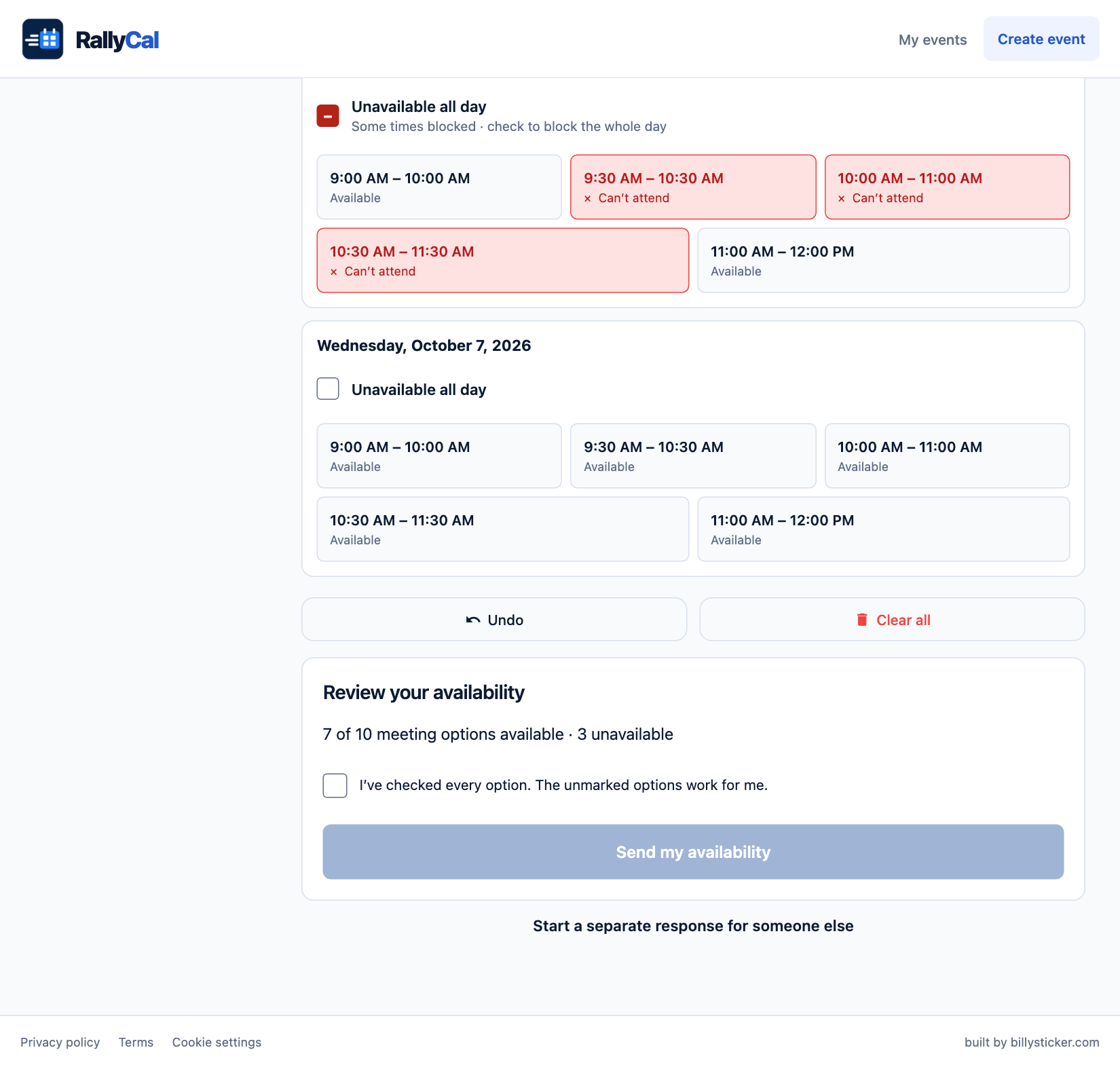
Mark options you cannot attend. Unmarked options count as available. A saved draft is counted only after you send it.
Create a meeting poll
1. Open rallycal.co and choose Create event. Select Meeting time and enter an Event name your group will recognize.
2. Set From and Through to the first and last possible dates. Use the same date for a single day.
3. Choose a Meeting length, then Earliest start and Latest finish. These hours apply to every date; possible starts are spaced 30 minutes apart.
4. Check the Event time zone, such as America/Chicago. Everyone sees times in that zone. Choose Create event & get link.
Example: A 60-minute meeting between 9 AM and noon offers starts from 9 AM through 11 AM. The latest finish is the end of the meeting.
Create a poll for whole days
1. Choose Create event, then Whole days. Enter the event name.
2. Set From and Through to the full range of dates your group could consider.
3. Under Consecutive days needed, use + or − to set the length. Choose 1 for an all-day event, 2 for two consecutive days, and so on.
4. Choose Create event & get link, then share the group invite using the sharing instructions below.
Example: For a two-day trip within October 16–20, RallyCal compares each pair of consecutive dates in that range. A person must be available on both days to count as available for a pair.
Share the invite and keep organizer access
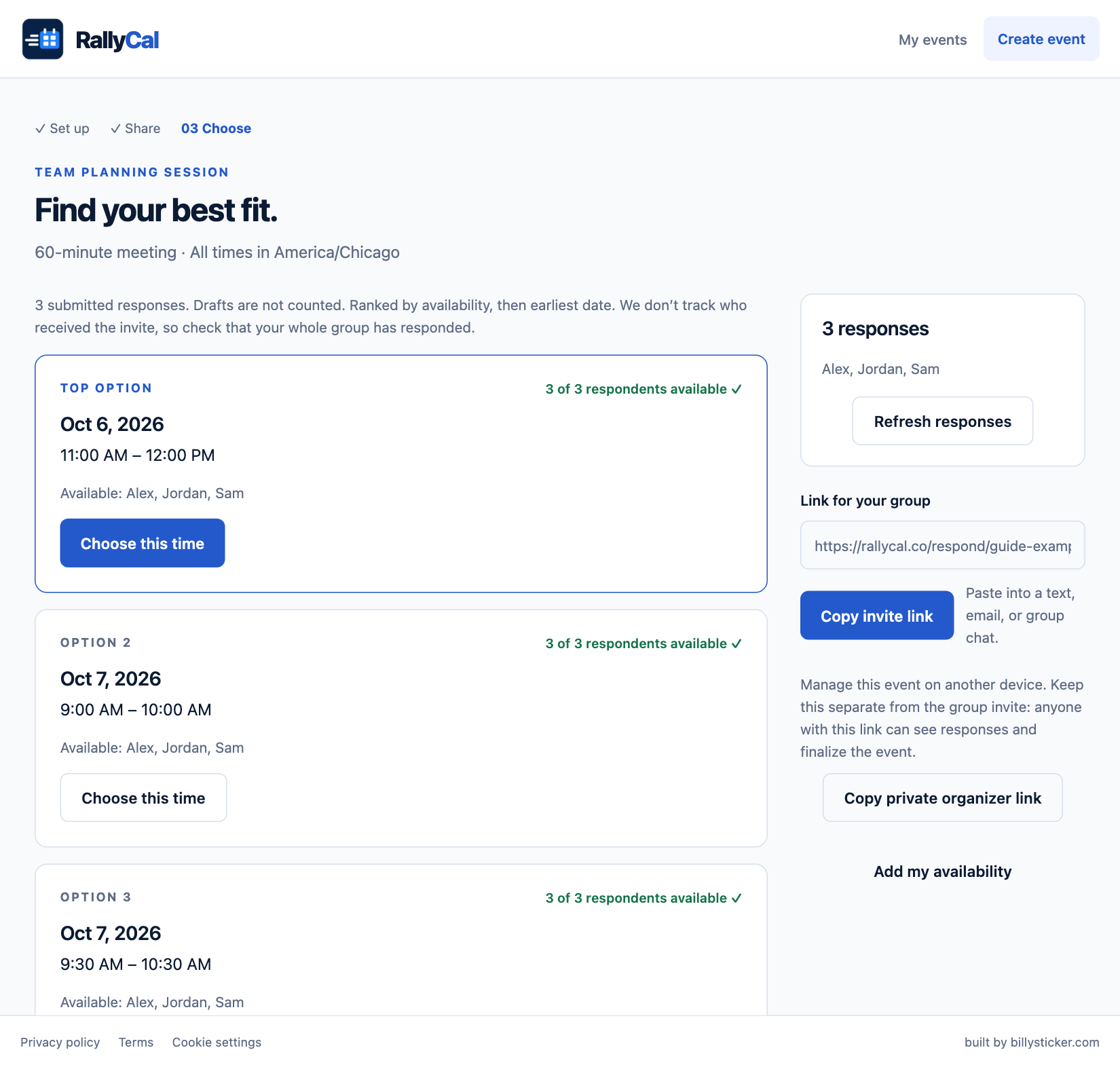
1. On the confirmation screen, choose Copy invite link under Link for your group. Paste it into your text, email, or group chat.
2. Choose Copy private organizer link and save it somewhere private. Use this link to manage the event on another device.
3. Choose Add my availability if you will attend. Creating the event does not submit an answer for you.
4. Choose View responses to see submitted answers. Later, open My events in the original browser or use your private organizer link.
Keep the links separate. Anyone with your private organizer link can see responses and finalize the event. The group invite does not give those permissions.
Read the results
1. Open My events and choose View responses, or open your private organizer link.
2. Check the response count and names. Use Refresh responses for the latest answers. Drafts do not count.
3. Read Top option and the other choices. RallyCal ranks options by how many respondents can attend, then by the earliest date and time. Use Show more options to see additional choices.
4. Compare the available names and any Can’t attend names before choosing.
Check who is missing. “3 of 3 respondents available” means all three people who submitted can attend. It does not mean everyone you invited has replied. RallyCal does not track invite recipients; follow up with your group yourself.
Choose the final plan
1. On the results screen, choose Choose this time for a meeting or Choose these dates for a whole-day event.
2. Review the selected date, times, time zone, and who can attend. If the option excludes someone, RallyCal shows a warning.
3. Choose Cancel to keep comparing, or Confirm this option to finalize the plan.
Confirm when you are ready. Confirmation closes responses. Participants can no longer send changes. There is currently no control to reopen a finalized poll or change its final choice; create a new event if the plan needs to change.
Tell the group yourself. RallyCal does not send automatic notifications when you confirm.
Share the confirmed plan and add it to a calendar
1. On the confirmed screen, check the final date and, for a meeting, the time and event time zone.
2. Choose Add to Google Calendar. In Google Calendar, review the event and save it. Sign in there if prompted.
3. Choose Copy invite link and send it to the group again. The same invite now leads participants to the confirmed plan; each person can save it to their own calendar.
Calendar export is a separate step. RallyCal does not connect to, read, or sync your calendar, and confirming a plan does not automatically add it. If you use another calendar, enter the confirmed details manually.
To plan again: Choose Plan another event.
Screenshots show example events. Use your own invite and dates. On a phone, scroll down to reach the review and send controls.
 View full-size example ↗